
V16 FUTURE WHITE / E14A
GP2040-CE 0.7.12
Official Haute42COSMOX firmware package for V16 Future White and HautePad E14A.
TBGAMER / PLAYER SUPPORT
Setup guidance, compatibility checks and practical fixes—without digging through a wall of documentation.
START WITH YOUR CONTROLLER
Pick a model for the most relevant setup and compatibility guidance.
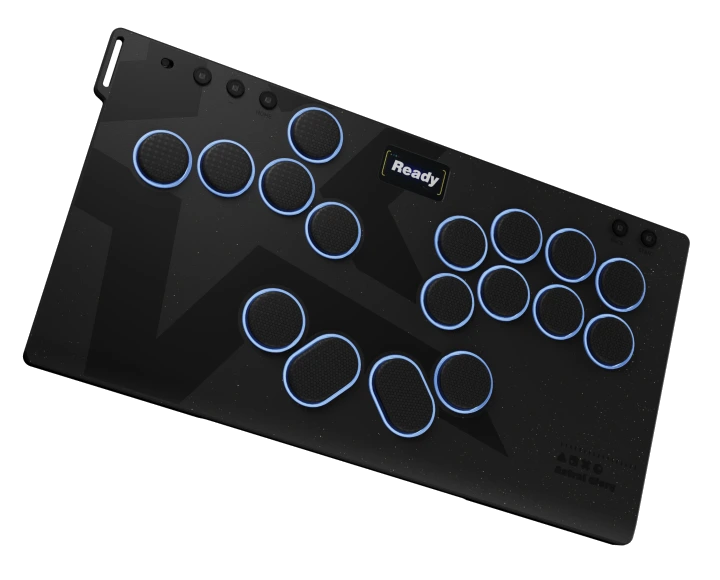
Color screen · 17-button layout · console connection
Find its firmware ↓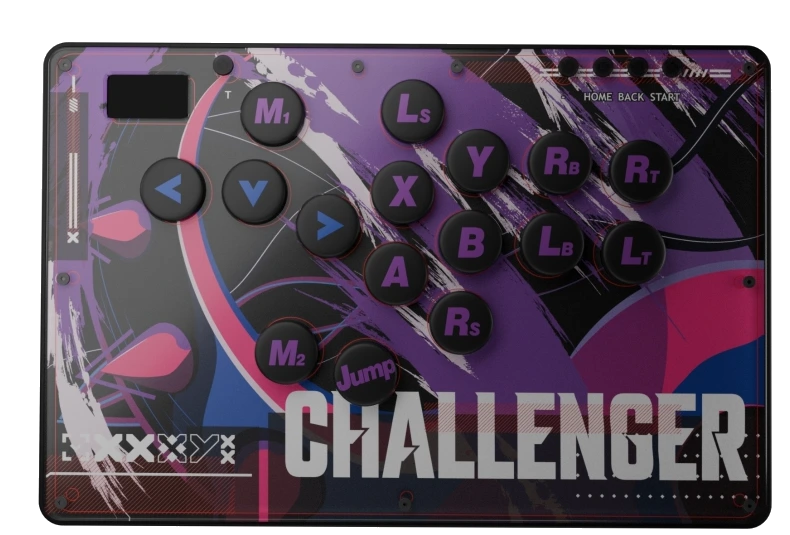
Custom images · color editions · platform setup
Find its firmware ↓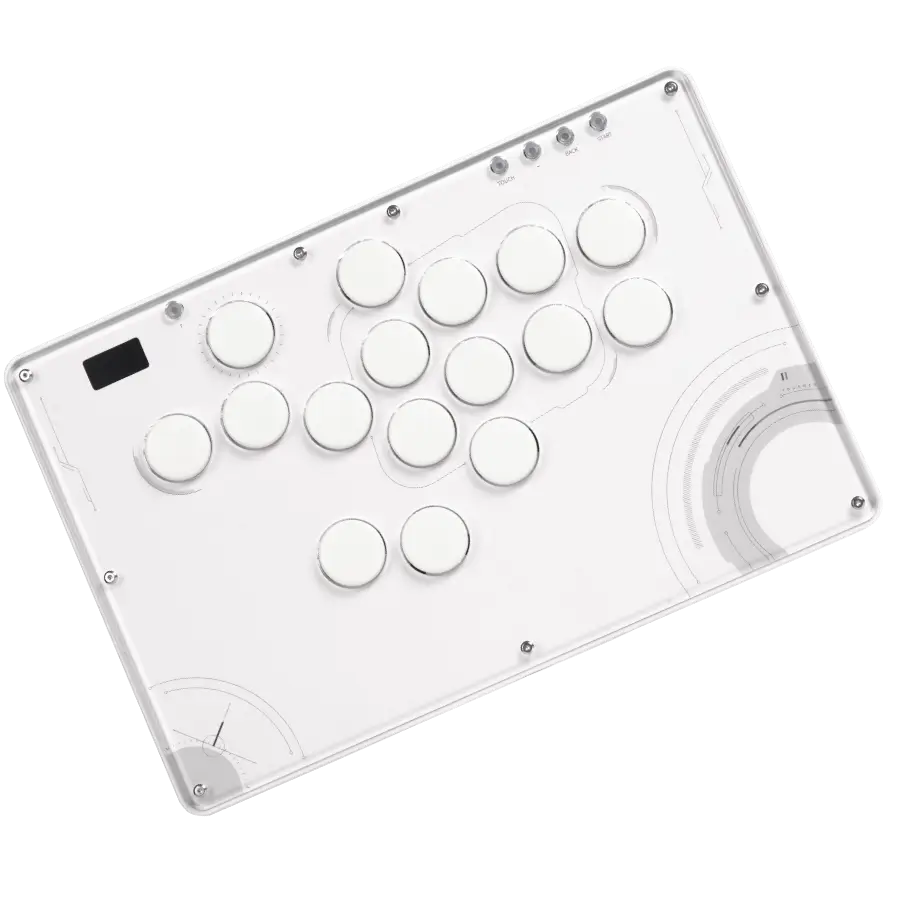
RGB lighting · switches · converter requirements
Find its firmware ↓FIRMWARE & RECOVERY TOOLS
Check the model and version before flashing. Download links open the current files hosted by the official TBGAMER store.
V16 FUTURE WHITE / E14A
Official Haute42COSMOX firmware package for V16 Future White and HautePad E14A.
HAUTEPAD TIMELESS16
Model-specific firmware for HautePad Timeless16, with the RP2350 recovery file alongside it.
EMOTION III-17
Model-specific firmware for HautePad Emotion III-17, with the RP2350 recovery file alongside it.
TRY THIS FIRST
Most setup problems start with one of these four things.
Disconnect other controllers, reconnect directly to the device, and try another data-capable USB cable or port. Restart the game after the controller appears in your system.
Still not detected? Contact support →Check the active input mode, button mapping and SOCD setting. Restore your intended profile before changing firmware or opening the controller.
Ask us to check your setup →Console compatibility depends on the controller, console generation, game and adapter. PS4/PS5 support on V16 requires a converter. Confirm the exact combination before ordering.
Read the compatibility checklist →Use the current configuration tool for your model, connect with a data cable, and save a backup of your working profile before applying changes.
Get the right setup guidance →BEFORE YOU CONNECT
“Supported” does not always mean direct connection. Check all four details before you buy an adapter or change a setting.
Emotion III-17, Timeless16 or V16.
PC, Switch, Steam Deck, PlayStation or Xbox.
Some games expect a specific controller mode.
Confirm the exact model before ordering.
NEED A HUMAN?
For a faster answer, include your controller model, platform, game, connection method, and a photo or short video of the issue.